- 易迪拓培训,专注于微波、射频、天线设计工程师的培养

CST2013: List of Selected Points
录入:edatop.com 点击:
 Modeling: Picks
  Pick Lists Selected Points
This dialog box gives you an overview over the coordinates of all currently selected points from your model. The list box shows the coordinates of all selected points in the global coordinate system.
As soon as you select a point from the list, it will also be highlighted in the main view by dimming all other points. You can select a range of points by holding the left mouse button pressed while dragging the mouse down the list. Furthermore you may also select or deselect multiple points by holding the CTRL-key pressed while clicking at the corresponding lines in the list box.
You may close this window either by pressing ESC while the dialog box has the focus or by clicking at the X item in the window bar.
Delete
This operation allows you to delete all points currently selected in the list box. This operation is only active when at least one point is selected.
Modify...
When this button is pressed, another dialog box will open in which you may change the coordinates of the currently selected points by specifying a translation vector. Furthermore you may specify whether the original points shall be kept or skipped.
Mean
With this operation you may replace all points currently selected in the list box by a ”mean” point which is created by averaging all point coordinates. This operation is only active when at least two points are selected in the list box.
Hint: Use this operation to create a center point inside a rectangular hole (see example below).
To edge
Creates a new edge between the two selected points. Afterwards the points are deleted from the list.
Deselect
This operation allows you to deselect all points in the list box. This operation is only active when at least one point is selected.
Close
Closes this dialog box without performing any further action.
Help
Shows this help text.
Example
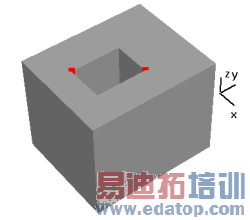
The following example shows how to create a point in the center of a rectangular hole. This point may then be used for adjusting the local coordinate system.
In a first step you may select two opposite corner points by using the edge end point selection tool (a).
Afterwards you may open the point list and select both points before pressing the Mean button. Finally a point will be created which is located exactly in the center of the hole (b).
a)
| b)
|

CST微波工作室培训课程套装,专家讲解,视频教学,帮助您快速学习掌握CST设计应用
上一篇:CST2013: Modify Point Location
下一篇:CST2013: Enter Radius
CST培训课程推荐详情>>
 最全面、最专业的CST微波工作室视频培训课程,可以帮助您从零开始,全面系统学习CST的设计应用【More..】
频道总排行
- CST2013: Mesh Problem Handling
- CST2013: Field Source Overview
- CST2013: Discrete Port Overview
- CST2013: Sources and Boundary C
- CST2013: Multipin Port Overview
- CST2013: Farfield Overview
- CST2013: Waveguide Port
- CST2013: Frequency Domain Solver
- CST2013: Import ODB++ Files
- CST2013: Settings for Floquet B