- 易迪拓培训,专注于微波、射频、天线设计工程师的培养

HFSS15: Setting the Color Key Visibility
录入:edatop.com 点击:
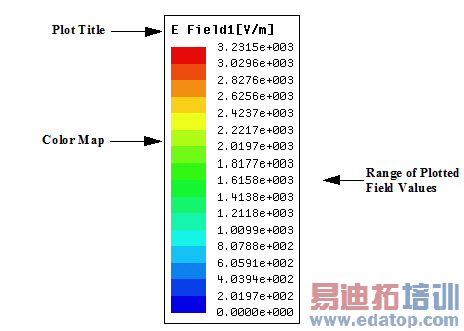
Setting the Color Key Visibility
1. Click View>Active View Visibility .
.
The Active View Visibility dialog box appears.
2. Click the Color Keys tab.
3. In the Visibility column, select the field overlay or mesh plots in which you want to display the color key. Clear the plots in which you want to hide the color key from view.
4. Click Done to dismiss the dialog box.
Only the color keys in the selected plots will be visible.
Related Topics
Modifying Field Plot Colors
Moving the Color Key
HFSS 学习培训课程套装,专家讲解,视频教学,帮助您全面系统地学习掌握HFSS
上一篇:Setting Mesh Plot Attributes
下一篇:Setting Modeler Options

