- 易迪拓培训,专注于微波、射频、天线设计工程师的培养

HFSS15: Restore Archive Command
录入:edatop.com 点击:
To restore an existing archive created with Project>Archive..., use the Project>Restore Archive command.
1. Click Project>Restore Archive
This displays an Archive to Restore browser window that lets you navigate your file system for archive files of <product>z or *.zip.

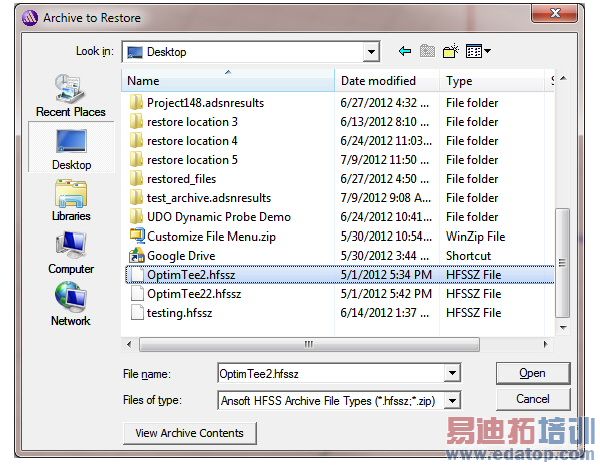
2. If you select a valid archive file, you can click View Archive Contents to preview the contents.
The preview dialog will show the same warnings that were generated at archive time, and these warnings may be useful to identify additional steps that are needed to update any files to refer to files which had to be manually added to the archive.
3. Click Open to change to a Project File Restore Location browser.
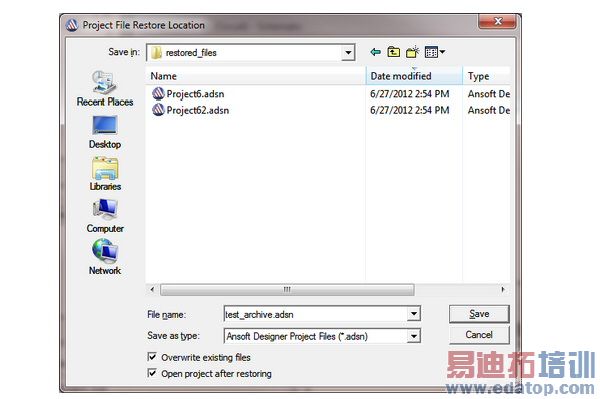
You can edit the file name, and check options to Overwrite existing files and to Open project after restoring.
Overwrite existing files: If this button is checked, the restored files will automatically overwrite existing files during the restore process. If this button is unchecked, existing files will not be modified.
Open project after restoring: If this button is checked, the project will be opened in this instance of the application after all files have been restored.
4. Click Save to restore the archived file.
While restoring an archive, a dialog is displayed showing the restore results. The progress bar shows the relative progress, and the text window displays only important information and warnings.
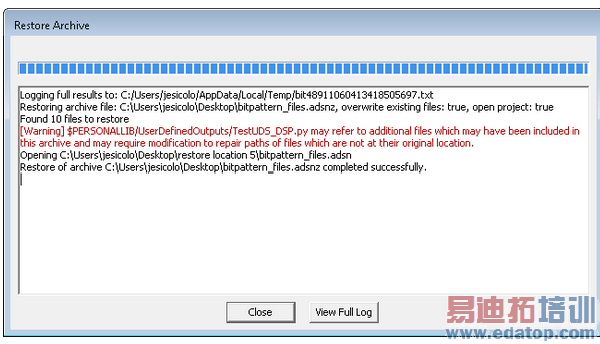
A full log file is also generated which contains detailed information about the restore process. The first line in the text window displays the location of the full log file. After the restore has been completed, the user can click "View Full Log" to view this log file, or they can use a text editor and open the file at the specified location.
HFSS 学习培训课程套装,专家讲解,视频教学,帮助您全面系统地学习掌握HFSS
上一篇:Creating Reports
下一篇:Rotating Objects

