- 易迪拓培训,专注于微波、射频、天线设计工程师的培养

HFSS15: Hiding Objects from View
录入:edatop.com 点击:
To hide selected objects.
1. Select the object you want to hide from view.
2. Click View>Visibility>Hide Selection and one of the following commands:
• All Views to hide the selected object in every open view window.
• Active View to hide the selected object in the active view window.
You can also right-click in the modeler window for a short-cut menu and use the View commands for Hide Selection, or Show Only Selection.
You can also use the Hide icons in the toolbar to hide selected objects in all views or the active view.

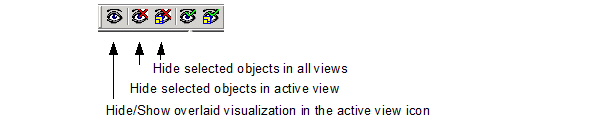
The objects you selected are hidden.
If there are many objects, you may find it easier to hide objects using the Active View Visibility dialog.
Note | Hiding boundaries also turns off a check for boundary overlaps during boundary assignment. In the case of very large models with many boundaries, hiding boundaries can prevent delays during boundary assignment. Full model validation will subsequently check for boundary overlaps. |
Object visibility is saved with the project.

