- 易迪拓培训,专注于微波、射频、天线设计工程师的培养

HFSS15: Create an Optimization Setup to Search for the Phase Center
录入:edatop.com 点击:
1. Add an Optimization setup.

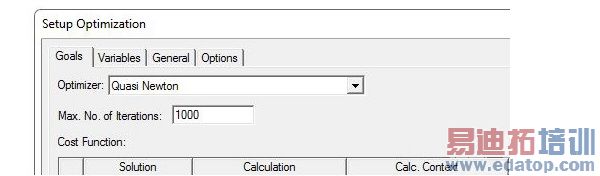
2. Click the Setup Calculations button to open the dialog for defining the Calculation Expression.
You will define Optimization Goals designed to search for the phase center.
The expression to be optimized is the peak to peak continuous angle of the quantity rEPhi.

• The Report Type is Far Fields.
• The Solution is LastAdaptive.
• The Geometry is the Infinite Sphere defined using the PhaseCenterZ variable.
• The Calculation Expression includes the rEPhi Quantity with the cang_deg function. The antenna is Phi polarized for the Phi=0 plane (E-field along the y-axis).
• You then click Range Function button to select Math and pk2pk to apply over the Theta sweep..

• The Over sweep field defines the range of the sweeping intrinsic, with Theta from -40 deg to +40 deg. 0 deg is selected for the value of Phi.
• Return to the Setup Optimization dialog. Here you may need to scroll to the right to see and set the Goal weight Condition to Minimize.
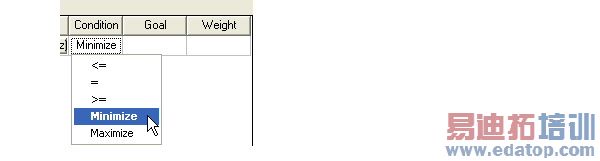
The "Minimize" goal condition doesn't require user to setup the goal value/weight and can be more natural for antenna related application. However, users need to be aware of below restrictions.
• "Minimize/Maximize" can only be used when a single calculation quantity is being optimized.
• Optimetrics only supports one dimension of range reduction, that is, no nested range function
The above restrictions implies "Minimize/Maximize" choices can only be used if
• Only one sweep in the Calculation Range has multiple values, and
• A Range reduction function is used in the Calculation Expression
In the example project, OptimizationSetup2 uses the Minimize selection. For comparison, The OptimizationSetup1 uses the <= Condition with a Goal of 0 and a weight of 1, subject to the Noise setting of 0.0001. The final values for PhaseCenterZ in the two setups are very close.
The completed Goals for the Optimization setup2 for the example display as shown:

For the Variables tab, you should check to include the variable used to define the relative coordinate system. The search is restricted to a minimum of 5 in and a maximum of 10 in along the Z coordinates of the relative coordinate system.

For the General tab, uncheck Update design parameters value after optimization. This permits you to view a plot of the progress of the simulation.
OK the completed Optimization Setup.
Next, you Analyze and View the Optimization Results.
HFSS 学习培训课程套装,专家讲解,视频教学,帮助您全面系统地学习掌握HFSS
上一篇:Copy Image
下一篇:Creating a Face List

