- 易迪拓培训,专注于微波、射频、天线设计工程师的培养

HFSS15: Assigning Length-Based Mesh Refinement on Object Faces
录入:edatop.com 点击:
1. Select the faces you want HFSS to refine.
Alternatively, select an object if you want HFSS to refine every face on the object.
2. Click HFSS>Mesh Operations>Assign>On Selection>Length-Based.
The Element Length-Based Refinement dialog box appears.
3. Type a name for the mesh operation in the Name text box or accept the default name.
4. To restrict the length of tetrahedra edges touching the faces:


a. Select Restrict Length of Elements.
b. Type the maximum length of the tetrahedral edges touching the faces in the Maximum Length of Elements text box.
HFSS will refine the element edges touching the selected faces until their lengths are equal to or less than this value.
The default value is set to 20% of the maximum edge lengths of the bounding boxes of each selected face.
For first order basis functions, amaximum length of  is recommended for radiation boundary surfaces.
5. To restrict the number of elements added during refinement of the faces:
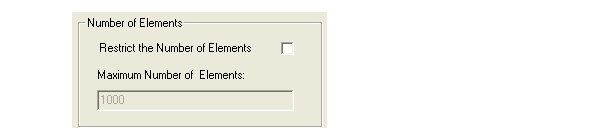
a. Select Restrict the Number of Elements.
b. Enter the Maximum Number of Elements to be added.
c. Click OK.
When the mesh is generated, the refinement criterion you specified is used. If the maximum number of elements is reached, some elements may exceed the requested maximum element length.
You can also specify Initial Mesh Settings to apply to all objects; however, if you apply separate surface approximation mesh operations to specific objects, the object settings take precedence over the general setting.
HFSS 学习培训课程套装,专家讲解,视频教学,帮助您全面系统地学习掌握HFSS
上一篇:Assigning Materials from the Object Properties Window
下一篇:Assigning Frequency Dependent Material: Enter Frequency Dependent Data Points

