- 易迪拓培训,专注于微波、射频、天线设计工程师的培养

HFSS15: The Submit HPC Job Dialog
录入:edatop.com 点击:
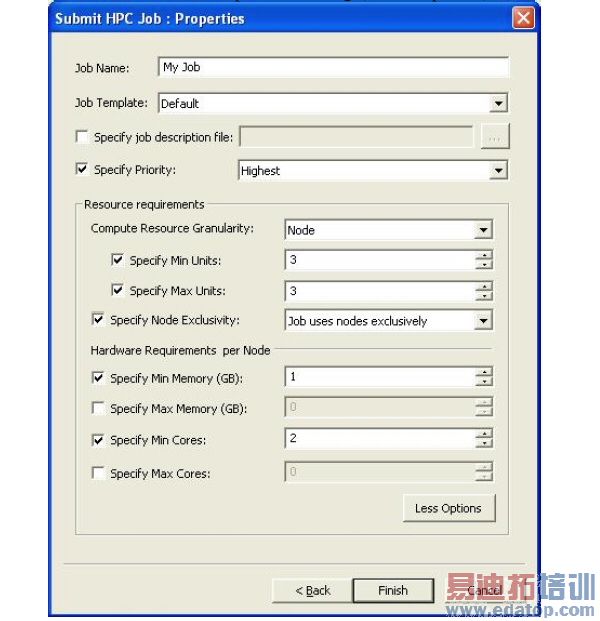
The Submit HPC Job: Properties dialog takes two forms, depending on whether you toggle the Less Options/More Options button. With More Options selected, the dialog appears as follows:

Pressing Less Options causes the dialog to appear as follows:
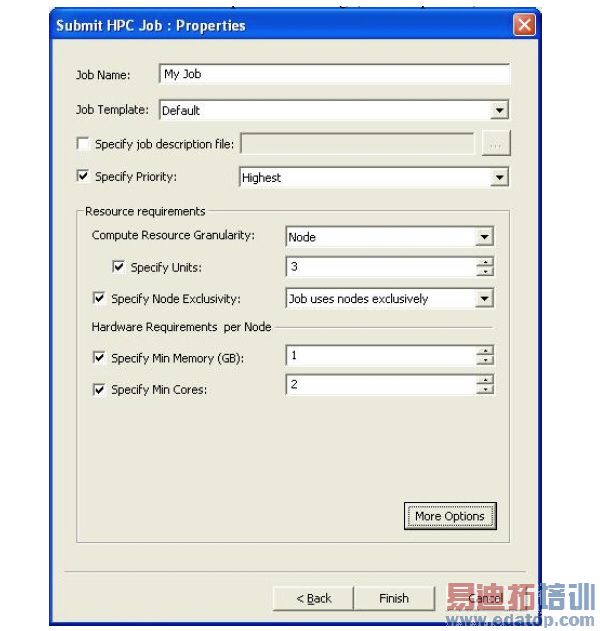
This dialog may be used to set the following job properties:
• Job name (required)
• Job template (required, but may be set to Default)
• Job description file (optional)
• Job priority (optional)
• Compute resource granularity: Core, Socket or Node (required)
• Minimum/Maximum number of compute resource units: Set both the minimum and maximum to the same number. (see Specifying the Number of Compute Resource Units for HPC Jobs)
• Node exclusivity: true or false (optional)
• Minimum memory per node (optional)
• Maximum memory per node (optional)
• Minimum number or cores per node (optional)
• Maximum number or cores per node (optional)
A Job description file is created using Windows HPC Job Manager. If a job description file is specified, the settings in this file will be used to obtain the following job properties:
• Project (this is different from Ansoft project)
• Job run options
• Node groups that filter the nodes available to run the job
• Node list that limits the nodes on which the job can run
• Job Licenses
• Node prioritization: given the nodes available for the job, this property allows you to determine the node preferences
See the Windows HPC Job Manager for documentation of above properties.
Pressing the Finish button submits the job. Pressing the Back button returns to the Submit HPC Job: Tasks dialog. Pressing the Cancel button dismisses the dialog without submitting the job.
HFSS 学习培训课程套装,专家讲解,视频教学,帮助您全面系统地学习掌握HFSS
上一篇:Testing Your Scheduler Integration
下一篇:Transient Solution Data

