- 易迪拓培训,专注于微波、射频、天线设计工程师的培养

HFSS15: Selecting Edges
录入:edatop.com 点击:
If the modeler is in edge selection mode, simply click an object’s edge in the view window and it will be selected. To select multiple edges, hold the CTRL key as you click the edges.
When the mouse hovers over an edge in the view window, that edge is highlighted, which indicates that it will be selected when you click. Selected edges become the color specified under the Display tab of the Modeler Options dialog box. All other objects become relatively transparent.
Switch to edge selection mode using one of the following methods:
• From the menu bar, click Edit>Select>Edges
• Press the “E” key to enter edge selection mode.
• Select Edge from the pull-down list in the 3D Modeler Selection toolbar.
Selecting an edge enables the following toolbar icons.

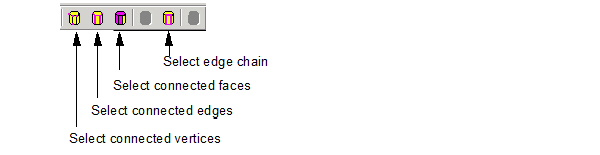
You can use these icons to modify the current selection.
• Select edge chain selects the edges that touch the selected edge.
• Select connected faces selects faces touching to the current selection.
• Select connected edges selects the edges that touch the current selection.
• Select vertices selects the vertices of the selected edge or edges.
HFSS 学习培训课程套装,专家讲解,视频教学,帮助您全面系统地学习掌握HFSS
上一篇:Selecting Several Objects
下一篇:Selecting Solution Quantities to Plot

