- 易迪拓培训,专注于微波、射频、天线设计工程师的培养

HFSS15: Selecting Solution Quantities to Plot
录入:edatop.com 点击:
When you create a report of Modal or Terminal solution data, each trace in the report includes a quantity that is plotted along an axis. The quantity being plotted can be a value that was calculated by HFSS such as S11, a value from a calculated expression, or an intrinsic (inherent) variable value such as frequency or theta. The valid categories available depend on the type of quantity (real or complex) that is being plotted, the setup, the solution type, and the plot domain.
To select an S-parameter quantity to plot:
1. In the Report dialog box, Trace tab, select one of the following categories:

Variables | Intrinsic variables, such as frequency or theta, or user-defined project variables, such as the length of a quarter-wave transformer. |
Output Variables | User defined expressions applied to derive quantities from the original field solution. |
S-parameter | S-parameters from the S-matrix. For designs which include a Frequency Selective Surface (FSS)-referenced radiation boundary, S11 and S21 represent the extracted reflection and transmission coefficients, respectively. |
Y-Parameter | Admittance matrix parameters computed from the S-parameters and port impedances. |
Z-Parameter | Impedance matrix parameters computed from the S-parameters and port impedances. |
VSWR | Voltage standing wave ratio, calculated from the equation.
|
Gamma | Propagation constants for the S-parameters. |
Port Zo | Characteristic port impedances. |
Lambda | Guided wavelength. |
Epsilon | Effective permittivity. |
Group Delay | Quantity calculated as rate of change of the total phase shift with respect to angular frequency,
|
TDR Impedance | TDR (Time-Domain Reflectometry) impedance for non-terminal problems. The idea behind TDR is to excite a structure with a step function, and inspect the reflections as a function of time. If you select the Time Domain for the plot, the Category list includes the TDR Impedance and the TDR options button is enabled. Selecting the TDR Impedance category displays the (TDRZ) of every terminal or mode in the ports. The list of available Functions includes those that can operate on the TDRZ values. |
Active S-parameter | Active S, Y, Z, VSWR is supported only for driven modal projects. Given a driven model project with a total of N
If S The other relative active quantities are simply transformations on the active Sm. |
Active Y-parameter | Y0(M) is the port admittance of the m
|
Active Z-parameter
| Z0(m) is the impedance of the m
|
Active VSWR | Active Voltage standing wave ratio is supported only for driven modal projects.
|
Passivity | A scalar quantity based on the matrix Q = I - conjugate(transpose(S)) * S For every frequency, the value must be no larger than 1. |
Design | Enables you to plot or tabulate properties of objects, such as their volumes. |
Expression Cache | The values of expressions listed in the Expression cache of the Solution setup can be plotted, for example, as a function of adaptive pass to monitor their convergence. |
Expression Convergence | This is intended to plot convergence, as a function of adaptive pass, of expressions in the Expression cache of the Solution setup. In defining the report, for “Context”, select Solution: SetupN:Adaptive Pass. ExprDelta will show the change in the value of the expression as a function of adaptive pass, while ExprGoal will show, for comparison, the convergence goal for this expression, as defined in the Analysis Setup under the panel Expression Cache. |


 port modes, let a
 denote the complex excitation fro the k-th mode specified in the Edit Sources dialog. Also let S denote the computed N
  x N
x N  scattering matrix. If

 m
m  = 1..., N
  by
by 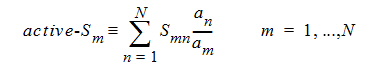
 is renormalized or deembedded, the interpretation is that the stimulations are applied to the renormalized external transmission lines at the plane of deembedding.
 -th mode.
 -th mode.

2. Select a quantity to plot from the Quantity list. The available quantities will depend upon the selected category and the setup of the design.
HFSS 学习培训课程套装,专家讲解,视频教学,帮助您全面系统地学习掌握HFSS
上一篇:Selecting Edges
下一篇:Selecting Faces

