- 易迪拓培训,专注于微波、射频、天线设计工程师的培养

HFSS15: Working with the Project Tree
录入:edatop.com 点击:
The project tree is located in the Project Manager window and contains details about all open HFSS projects, as shown below:
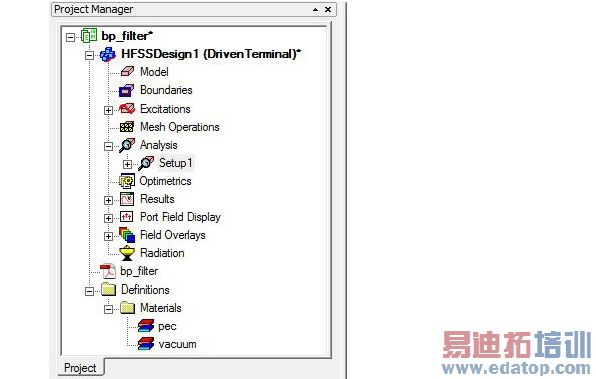
The top node listed in the project tree is the project name. It is named Projectn by default, where n is the order in which the project was added to the current session of HFSS. Expand the project icon to view all the project’s HFSS design information and material definitions.
When the Project tree is taller than the window, if you mouse has a scroll wheel, you can click in the Project manager and use the wheel to scroll up and down. If the Project tree is larger than the window size, there is also a scroll bar can control with the mouse cursor.
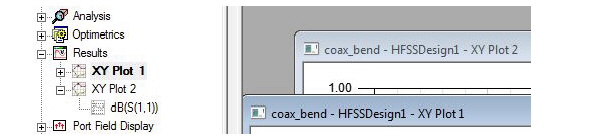
By default, the Project tree icon for the active window is highlighted, as shown in the figure below. (See General Options: Miscellaneous for the options.) With the option disabled, XY Plot 1 in the Project tree would not be highlighted.

Related Topics
Viewing HFSS Design Details
Setting the Project Tree to Expand Automatically
Viewing Material Definitions Under the Project Tree
HFSS 学习培训课程套装,专家讲解,视频教学,帮助您全面系统地学习掌握HFSS
上一篇:Working with the Project Manager
下一篇:When HFSS Needs Port Calibration (deembedding)

